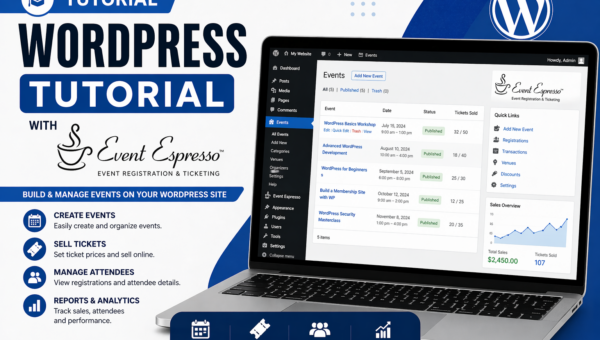
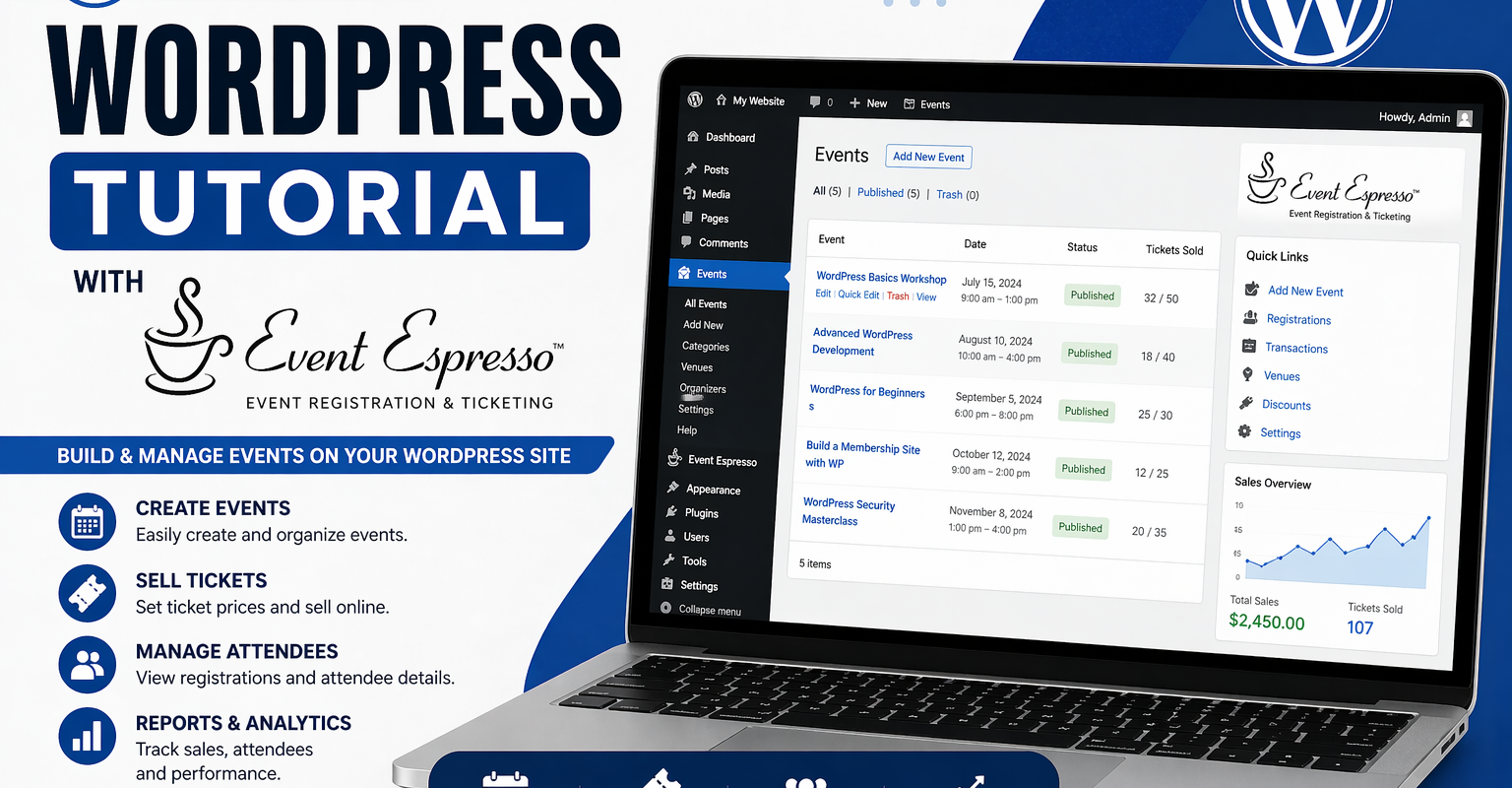

If you are manually replying to attendees after every registration, you are duplicating work that Event Espresso can already handle. This tutorial shows how to set up clear, automated confirmation emails inside WordPress using Event Espresso’s messaging system.
Why this matters
A well-structured confirmation email does more than acknowledge a booking. It reassures the attendee, provides key details, and reduces follow-up questions.
Event Espresso includes a built-in messaging system that uses templates, contexts, and dynamic shortcodes. When configured properly, it creates a repeatable communication workflow for every event.
How Event Espresso messaging works
Event Espresso emails are built from three parts:
- Message templates — the layout and structure of the email
- Message contexts — who receives the message and when
- Shortcodes — dynamic data such as event details and attendee information
Typical workflow:
- User registers for an event
- Event Espresso triggers a message
- The correct template and context are applied
- Shortcodes insert live event and attendee data
- Email is sent automatically
Step 1: access message templates
In your WordPress dashboard, go to:
Event Espresso → Messages → Default Message Templates
This is where you manage your core email templates for registrations, payments, and admin notifications.
Step 2: customise the registration confirmation email
Open the registration confirmation template for attendees. This message is sent immediately after a successful registration.
Structure your email clearly
- Confirmation (reassurance)
- Event details
- Next steps
- Support contact
Example template
Subject: You’re confirmed for [EVENT_NAME]

Hi [REGISTRANT_FNAME],

Your registration for [EVENT_NAME] has been received.

Event details:
Date: [EVENT_DATE]
Time: [EVENT_TIME]
Location: [VENUE_TITLE]

What happens next:
- Keep this email for your records
- Check your payment status below if applicable

If you have questions, reply to this email.

Thanks,
[EVENT_AUTHOR_FORMATTED_EMAIL]
Keep content concise. Most users scan emails rather than read them in full.
Step 3: use shortcodes for dynamic content
Shortcodes allow Event Espresso to insert real attendee and event data into emails automatically.
Common shortcodes
[EVENT_NAME][REGISTRANT_FNAME][EVENT_DATE][EVENT_TIME][VENUE_TITLE]
Use only what is necessary. Overloading emails with too much data reduces clarity.
Step 4: configure payment messaging
Payment emails are critical for clarity, especially if you support multiple payment methods.
Successful payment
- Confirm payment received
- Reassure booking is complete
- Repeat key event details if needed
Pending or unpaid
- Clearly state payment status
- Provide next steps
- Include any deadlines or contact details
Step 5: reuse templates across events
Build one strong default template and reuse it. This ensures:
- consistent communication
- faster event setup
- reduced admin workload
Advanced setup: reminders and automation
Event Espresso handles transactional emails such as confirmations and payments. It does not include native scheduled reminder emails.
For reminders and advanced workflows, use:
- CRM or email platforms (e.g. Mailchimp, FluentCRM)
- custom WordPress development using cron
Recommended setup:
- Event Espresso → registrations and confirmations
- CRM → reminders and follow-ups
Best practices
- Write emails for clarity, not completeness
- Keep structure consistent across events
- Test emails before publishing changes
- Review on mobile devices
- Ensure support contact is visible
Common mistakes
Generic messaging
Fails to confirm status clearly or guide the attendee.
Unclear payment status
Leads to confusion and unnecessary support emails.
Overcomplicated templates
Too much information reduces usability and readability.
Summary
Event Espresso’s messaging system allows you to automate essential attendee communication directly in WordPress. By structuring templates properly and using dynamic shortcodes, you can reduce manual admin and improve the attendee experience.
For more advanced automation such as reminders and segmentation, combine Event Espresso with a CRM or email platform.
Excerpt
Learn how to automate confirmation emails in Event Espresso for WordPress. Improve attendee communication, reduce admin, and create a consistent event email workflow.