

If you’ve searched for a clear technical explanation of how to connect LockedOn to a WordPress website, you’ve probably noticed there isn’t much out there. A few forum threads, a documentation page from Easy Property Listings, and not much else.
This post covers the full picture — how LockedOn pushes listing data, what the WordPress side of the stack looks like, how to set it up step by step, and what can go wrong once it’s running. Whether you’re a developer quoting a real estate project or an agency principal trying to understand what your developer should be doing, this is the reference you’re looking for.
We build WordPress websites for real estate agencies in NSW and handle LockedOn integration as a standard part of the build. Here’s exactly how it works.
How LockedOn outputs listing data
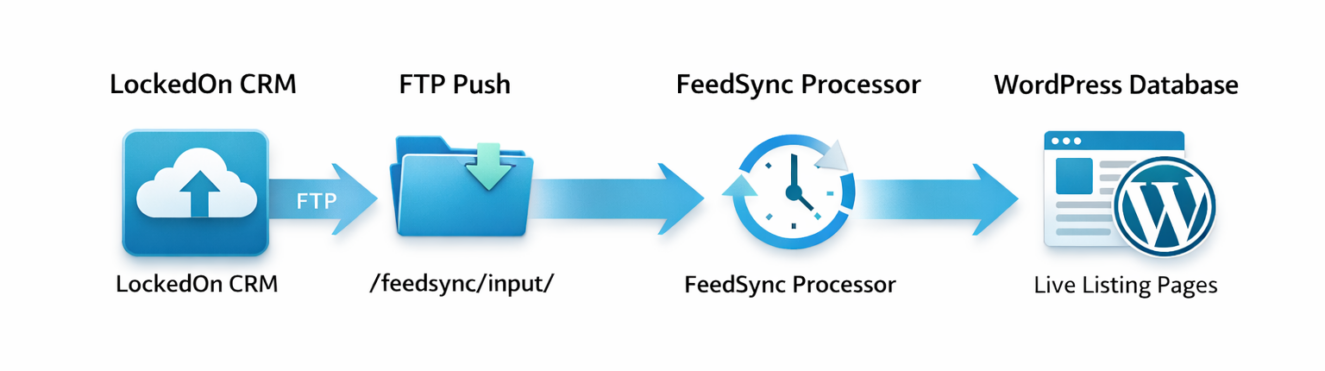
LockedOn doesn’t connect to your website through a plugin or an API call from WordPress. It pushes data out to your server via FTP, using an industry-standard format called REAXML.
REAXML is the XML schema used across the Australian real estate industry to transfer listing data between CRMs, portals, and websites. When LockedOn is configured for a website feed, it regularly delivers REAXML files to an FTP directory on your hosting server. Each file contains the listing data for one or more properties — address, price, bedrooms, bathrooms, car spaces, land size, description, agent details, photos, and status.
LockedOn is a web-based CRM that can feed listings to popular real estate portals and your own website via FTP. The same mechanism that pushes your listings to realestate.com.au and Domain is what feeds your WordPress website — it’s just pointed at your server instead.
This is important to understand because it means your website isn’t “talking to” LockedOn in real time. It’s receiving files on a schedule. How frequently those files arrive depends on how LockedOn is configured on their end — typically updates are delivered within minutes of a change in the CRM.
The WordPress stack: what you actually need
Getting LockedOn listings into WordPress reliably requires four components. Each one has a specific job.
1. A dedicated FTP account on your server
LockedOn needs an FTP account with credentials pointing to a specific directory on your hosting server. This account exists purely to receive REAXML files. It should be isolated — limited to the feedsync input directory only, with a strong password. On cPanel hosting, the recommended directory is /public_html/XML/feedsync/input/, and on Plesk it’s /httpdocs/XML/feedsync/input/. You create a restricted FTP account scoped to that path, then hand the credentials to LockedOn.
2. FeedSync
FeedSync is a standalone pre-processor that saves listings into a database on your server, then dynamically generates an up-to-date XML file containing all your listings. This is the critical middle layer. LockedOn delivers dozens or hundreds of individual REAXML files — one per property update — and WordPress import tools can’t handle that natively. FeedSync receives those files into its input directory, processes them into a single consolidated database, and outputs a clean XML feed URL that WordPress can pull from.
It also handles deduplication. FeedSync reviews the unique property ID and searches for it inside the database — if one exists, that entry is overwritten. So when an agent updates a price or description in LockedOn, the next file delivery triggers an overwrite rather than a duplicate entry.
3. Easy Property Listings (EPL)
Easy Property Listings is the WordPress plugin that creates all the real estate-specific custom post types — residential sales, rentals, commercial, rural, land, and business. It ships with the display templates, search widgets, and taxonomy structure that a real estate website needs out of the box. Without it, you’d be building all of that custom post type architecture yourself.
EPL also includes the import template for WP All Import, which is what maps the REAXML field data to the correct WordPress fields during import.
4. WP All Import Pro
WP All Import Pro is the WordPress plugin that reads the FeedSync output URL and imports listings into WordPress on a schedule. It uses the EPL REAXML template to map incoming data correctly — prices to price fields, photos to the gallery, agent details to the author — and runs on a cron schedule so imports happen automatically without manual intervention.
There are seven listing types in REAXML and all are handled by Easy Property Listings: residential, rental, commercial, commercial land, rural, land, and business. Each type needs its own import job in WP All Import, configured with its own FeedSync output URL filtered by type.
Requesting the feed from LockedOn
Once your FTP account is set up and FeedSync is installed on the server, you contact LockedOn support to activate the feed. Email [email protected] with your FTP details in this format:
Hi LockedOn,

We are looking to configure our website REAXML listing feed.

FTP Account: your-server-ip or yourdomain.com.au
Username: your-ftp-username
Password: your-ftp-password
Directory: /
LockedOn will configure their end and begin delivering REAXML files to your input directory. Once files start arriving, you can run the FeedSync processor manually to confirm everything is working before setting up the automated cron jobs.
A few things worth knowing about this process. First, it can take a day or two for LockedOn to configure the feed on their end after you submit the request. Second, when they first activate it, LockedOn will push through all existing listings at once — so your first delivery may contain a large batch of files. Make sure your server has adequate resources to process a bulk import before going live.
Cron jobs and automation
Once you’ve confirmed the feed is working manually, the final step is automating both FeedSync processing and the WP All Import jobs so everything runs without intervention.
A cron job for FeedSync should run every 8 minutes (*/8 * * * *) as FeedSync processes XML files nearly instantly. This ensures incoming REAXML files from LockedOn are processed into the FeedSync database promptly after delivery.
Your WP All Import jobs — one per listing type — should be set to run on a schedule that matches how frequently you need the website to reflect CRM changes. Hourly is the standard starting point for most agencies. If the agency is active and listing updates need to appear faster, you can tighten the schedule, but check with your hosting provider that your server can handle the import frequency without performance issues.
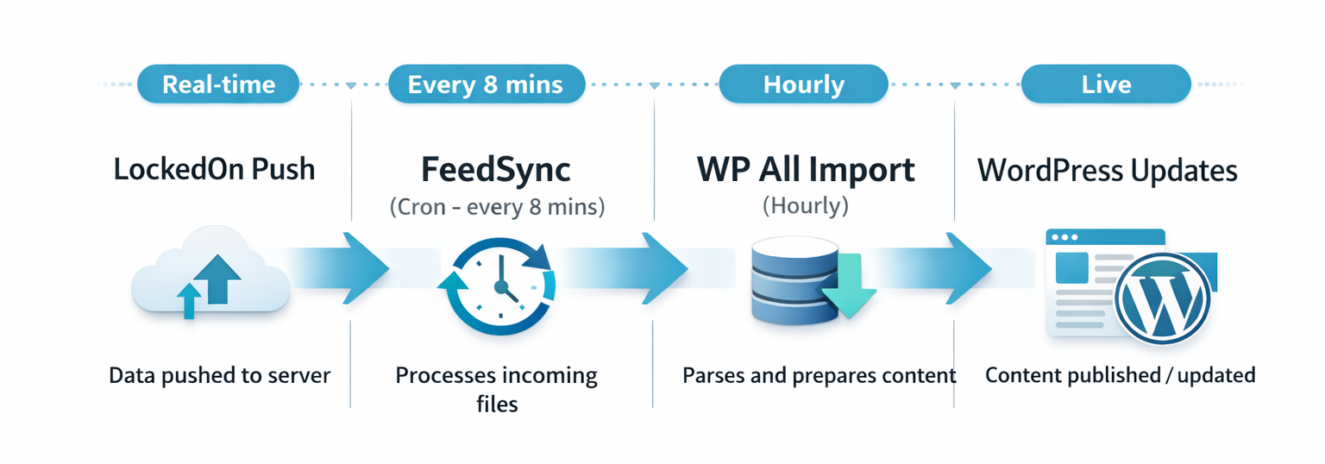
The cron jobs need to be set up at the server level — either via cPanel’s Cron Jobs tool or by adding them directly in the server’s crontab. Don’t rely on WordPress pseudo-cron (WP-Cron) for this. WP-Cron only fires when someone visits the site, which means imports are unreliable on lower-traffic sites. A proper server-level cron is non-negotiable.
What the listings look like on the front end
Once the import pipeline is running, each listing in LockedOn becomes a WordPress post of the corresponding EPL custom post type. The listing URL structure is controlled by your WordPress permalink settings — typically something like yourdomain.com.au/residential/suburb-property-address/.
For post titles, it’s best practice to use the property address and suburb rather than the listing heading, because agents often change the descriptive title while managing a listing. Using a stable address-based title means your URL doesn’t change when an agent edits their listing copy in LockedOn.
Photos are imported and stored in the WordPress media library. EPL creates a listing gallery from those images, which is then available to your theme templates. Agent details are mapped to WordPress users — each agent needs a corresponding WordPress author account, with their username formatted as firstname-lastname. FeedSync extracts this from the REAXML agent data and maps it automatically during import.
Sold and leased listings don’t disappear from the database. They update their status field, which your theme templates can use to display a “Sold” or “Leased” badge, or to filter them into a separate sold properties archive. This is important for SEO — a well-maintained sold archive is evidence of real market activity and builds authority for suburb-level searches over time.
Common issues and how to handle them
Feed stops delivering files. This usually means the FTP credentials have changed, the directory path has shifted after a server migration, or LockedOn’s feed configuration needs to be re-confirmed. Check the FeedSync input directory for recent file timestamps. If no new files have arrived for several hours and agents are actively updating listings in LockedOn, contact LockedOn support to verify the feed is still active.
Photos aren’t updating. WP All Import has an option to re-download images on each import — this is off by default because it’s resource-intensive. If an agent updates photos in LockedOn and the website isn’t reflecting the change, check whether image re-download is enabled for that import job.
Listing status not updating to sold or leased. This is almost always a WP All Import configuration issue. The import job needs to be set to update existing records, not skip them. Confirm the unique record matching field is set to {uniqueID[1]} — this is the identifier FeedSync and EPL use to match incoming REAXML records to existing WordPress posts.
Duplicate listings appearing. Also a unique ID matching issue. If the record matching field isn’t configured correctly, WP All Import creates a new post instead of updating the existing one. Check the import job settings and ensure the unique key is set before the first bulk import runs.
Multiple office feeds. FeedSync supports multiple feeds from different providers, and you can also output data based on office IDs, so if you have multiple feeds with multiple offices you can fetch listings from a specific office. This is useful if you’re building a website for a principal who runs two branches, or if an agency has a separate property management CRM alongside LockedOn for sales.
Keeping the integration healthy over time
A LockedOn integration isn’t a set-and-forget setup. Like any technical dependency between systems, it needs monitoring.
The practical minimum for an ongoing care plan that covers this integration should include: regular checks that REAXML files are still arriving in the input directory, monitoring of WP All Import job logs for import errors, verification that sold and leased statuses are updating correctly, and a process for testing the pipeline after any server migration or hosting change.
Server migrations are the most common point of failure. If you move hosting providers — or if your developer migrates the site without updating the FTP details with LockedOn — the feed breaks silently. Listings stop updating and nobody notices until an agent sees a sold property still showing as current on the website.
At Kursor Creative, we include feed monitoring in our [INSERT INTERNAL LINK: website care plans] so these issues are caught before the agency notices them. If you’re managing the integration yourself, build a regular check into your maintenance routine — monthly at minimum.
Is LockedOn’s native website product an alternative?
LockedOn offers its own agency websites through a beta programme, described as lightning-fast sites that work with LockedOn without complicated editors. For agencies that want the absolute simplest path to a connected website, it’s worth being aware of.
The trade-off is ownership and flexibility. A native LockedOn website lives within their ecosystem. Your content, your SEO configuration, your page architecture — all of it is constrained by what their platform supports. If LockedOn changes their pricing, deprecates a feature, or you decide to move CRMs, you’re looking at a full rebuild.
A custom WordPress website with a properly configured LockedOn integration gives you the listing sync you need while keeping full ownership of the site, the content, and the SEO strategy. For agencies building a long-term digital asset, that distinction matters.
Getting the integration right the first time
The LockedOn to WordPress integration isn’t particularly complex, but there are enough moving parts that a misconfiguration early in the process causes problems that are tedious to untangle later — particularly the unique ID matching and the cron scheduling.
If you’re briefing a developer for a real estate WordPress build, confirm they’ve done this integration before and ask specifically how they handle the FeedSync setup, cron automation, and post-migration feed verification. Those three things are where most integrations go wrong.
If you’d like us to handle it, get in touch — we’ve built the stack, we know where it breaks, and we include the ongoing monitoring as part of our care plans.