
In Australia, Eventbrite charges 5.35% plus $1.19 on every paid ticket you sell. On a $50 workshop with 40 attendees, that’s over $130 gone before you’ve covered a single cost. And that’s before you consider that Eventbrite owns your attendee data, your event pages live on their domain, and your SEO authority goes nowhere.
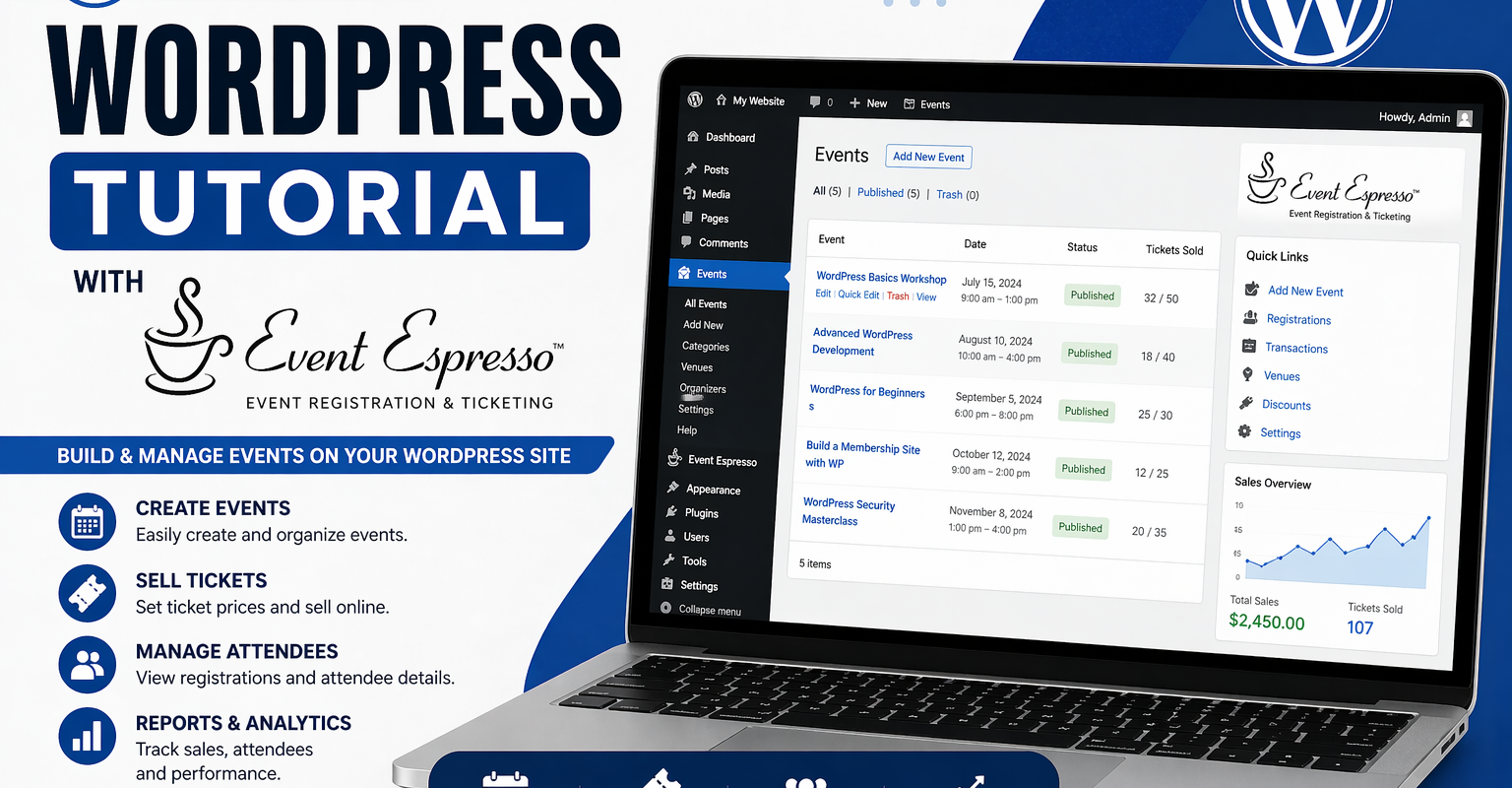
Event Espresso takes a completely different approach. It’s a WordPress plugin that handles event registration, ticketing, and payment processing directly on your own site. No per-ticket commissions. Payments go straight into your Stripe account. You keep the data, the domain authority, and every dollar your attendees hand over.
I’ve set it up for clients running single-day workshops, multi-session conferences, and recurring community events with tiered ticketing. This walkthrough covers everything from a fresh install to a live paid event — including the two settings most people miss before they even install the plugin.
Before you install anything
Two WordPress settings will cause problems later if you don’t check them now.
Timezone. Go to Settings > General and make sure the timezone is set to a city or region near you — “Sydney” or “Brisbane”, not “UTC+10”. Event Espresso uses this setting to calculate event start and end times, ticket sale windows, and automated email scheduling. A UTC offset looks fine until daylight saving kicks in and your event times shift by an hour.
Permalink structure. Go to Settings > Permalinks and confirm it’s set to “Post name” or any option other than “Plain”. Event Espresso generates event URLs based on your permalink structure. Plain URLs with query strings are bad for usability and worse for SEO.
Neither of these takes more than 30 seconds to check. Worth doing now.
Installing Event Espresso
If you’re using the free Decaf version, search for “Event Espresso” under Plugins > Add New and install it directly from the repository. If you’ve purchased a premium licence, download the zip from your Event Espresso account, then go to Plugins > Add New > Upload Plugin and upload it manually.
After activation, go to Event Espresso > General Settings and fill in your organisation’s contact details. This populates confirmation emails and receipts, so don’t skip it. If you have a premium licence, head to Event Espresso > Licence Keys, enter your key, and activate it. This unlocks automatic updates and access to the add-on plugins.
Setting up Stripe for payments
Event Espresso supports several payment gateways. For most Australian businesses, Stripe is the right call. There’s no redirect to an external checkout page, the transaction stays on your site, and Stripe handles PCI compliance so card data never touches your server.
You’ll need the Stripe add-on plugin installed and activated first. Once it’s active, go to Event Espresso > Payment Methods and click on Stripe Checkout. Hit “Activate Stripe Checkout Payment Method”, scroll down, and click “Connect with Stripe”. This kicks off Stripe’s OAuth authorisation flow — you’ll log into your Stripe account and grant Event Espresso permission to process payments on your behalf.
A few things worth knowing before you proceed. Your site needs a valid SSL certificate — HTTPS is non-negotiable for payment processing. Stripe supports credit and debit cards, Apple Pay, and Google Pay. Which payment methods are available to your customers is controlled from your Stripe dashboard, not from within Event Espresso.
Once connected, switch Stripe into test mode and run a full transaction end to end using Stripe’s test card numbers. Check that the payment registers correctly in Event Espresso’s transaction screen and that the confirmation email fires. Only switch to live mode once you’ve verified the complete flow works.
Creating a venue
If your event has a physical location, create the venue before you build the event. Go to Event Espresso > Venues > Add New Venue. Add the name, address, and capacity. If you want a Google Map embedded on the event page, you’ll need a Google Maps API key — there’s a link in the venue settings to register for one. Set “Display Google Map for this venue” to Yes and save.
For online events, you can either skip the venue entirely or create a virtual venue and include access details — Zoom link, Google Meet URL — in the venue description. Those details will appear on the event page and in confirmation emails automatically.
Building your first event
Go to Event Espresso > Events > Add New Event. Write a clear, descriptive title. This becomes the page heading and the URL slug, so make it something an attendee would actually search for, not an internal reference code.
Use the content editor to write the event description properly. This is a full WordPress content area — headings, images, video embeds all work here. Think of it as the landing page for that event. It needs to answer the key questions: what is it, who is it for, what will they leave with, and where is it.
Scroll down to Event Tickets and Datetimes. Set the event start and end date and time. Then configure your tickets. By default, a free ticket is created — click the pencil icon to edit it, update the name (for example, “General Admission”), set the price, and optionally set a quantity limit. You can add multiple ticket types here, each with different prices, names, and availability windows. Early Bird, Standard, VIP — all handled from the same screen.
Under Event Registration Options, set your maximum registrations and assign question groups. The default Personal Information group collects first name, last name, and email address. If you need additional information — dietary requirements, T-shirt size, company name — create custom question groups under Event Espresso > Registration Forms and attach them to the event.
Save the event, preview it to check the frontend layout, then publish when you’re satisfied.
Customising the confirmation email
Event Espresso sends a confirmation email automatically when someone registers. The default template works, but it’s generic. Go to Event Espresso > Messages and update it at minimum with your organisation name, the event date and location written clearly, and any pre-event instructions — parking, what to bring, your cancellation policy.
For paid events, the confirmation email doubles as a payment receipt. Event Espresso handles this by default, but open the template and check the formatting actually matches your brand before you go live. A poorly formatted receipt erodes trust fast.
Go-live checklist
Run through this before you share the event URL with anyone:
- Event status is set to Active (not Draft or Sold Out)
- Stripe is in live mode, not test mode
- SSL certificate is valid — padlock appears in the browser address bar
- Test registration completed and confirmation email received
- Event page loads correctly on mobile
- Ticket sale start and end dates are set correctly
- Event page proofread — once registrations start coming in, changing the event title or URL creates problems
The full setup — from a fresh plugin install to a live paid event — takes about 45 minutes if your Stripe account is already active and your event details are ready to go.
If you’d like help configuring Event Espresso for a client site, or you want a WordPress care plan that keeps your plugins updated and your payment flows working, get in touch with the team at Kursor Creative.